Your branded waiting room TV designed to put your providers, reviews, and education on screen.
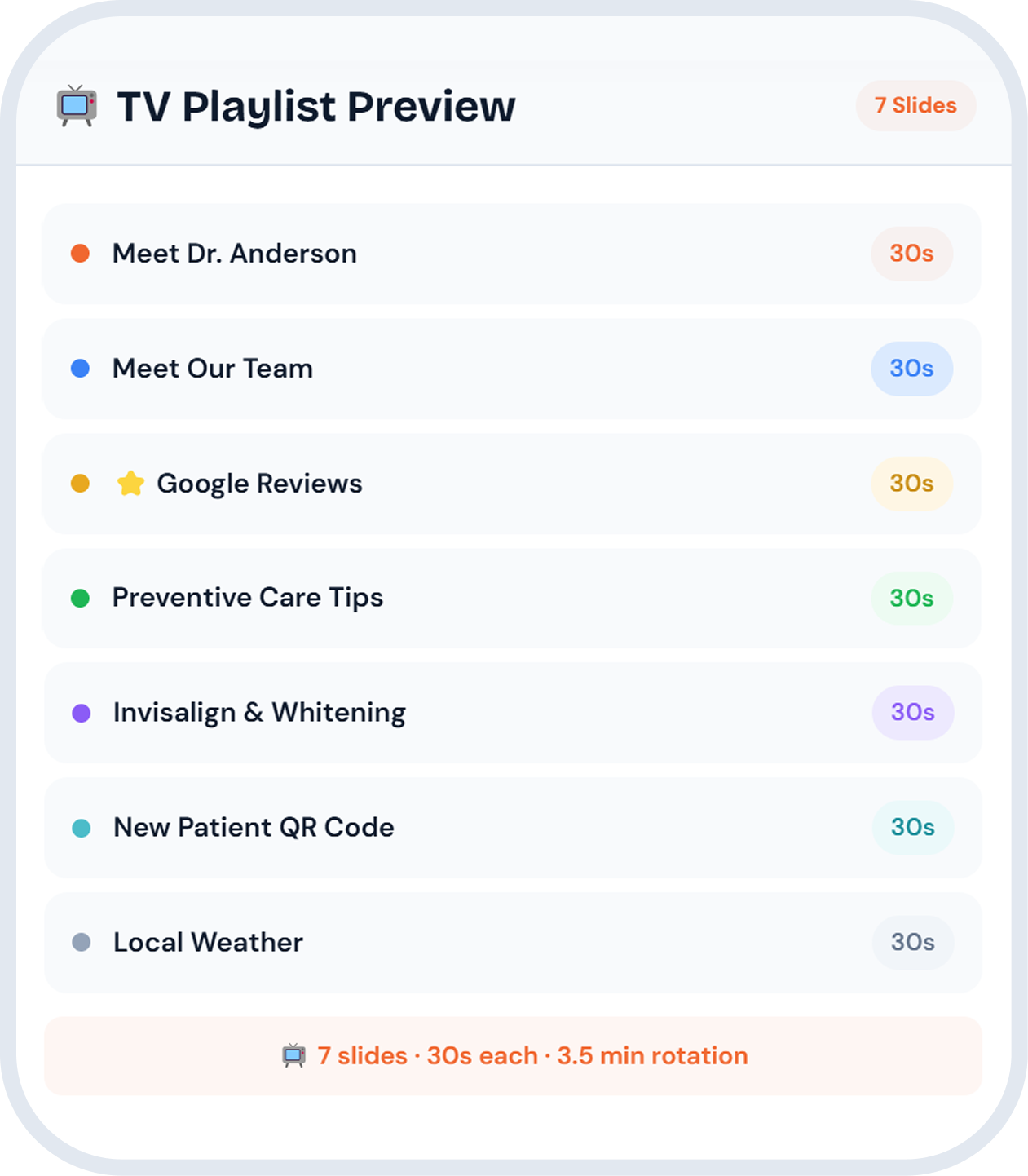
A waiting room TV designed to introduce your doctors and team, surface your published Google reviews, and run patient education and kid-friendly content. Configured from your dashboard and updated whenever you choose.
Use lobby time to introduce your practice.
Patients are already waiting. Designed to give them something to look at that reflects your practice, your providers, your reviews, your education content, rather than generic cable.
Your branding, on screen
Designed to display your practice's own look, logo, colors, and photos, instead of a generic feed patients tune out.
Patient education slides
Designed to walk patients through procedures and services while they wait, so appointments start with fewer questions.
Introduce providers and team
Designed to put faces to names before patients reach the chair, so the first hello feels familiar.
Slide types designed to fit your dental waiting room.
Pick the slide types that match how your practice runs the lobby. Configure each from your dashboard, set the rotation, and update whenever you choose.
Designed for one staff member to manage every screen.
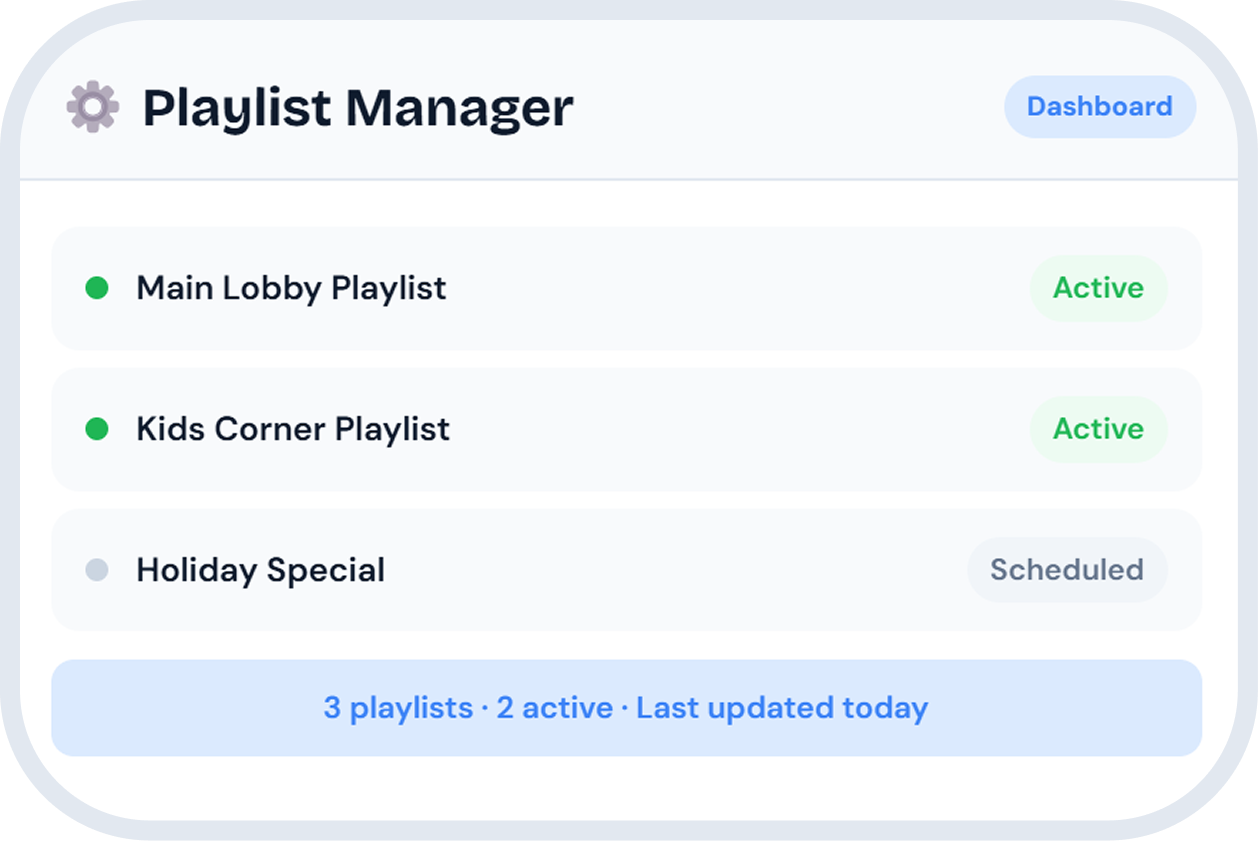
Upload, reorder, and schedule slides from your dashboard. Designed so a single team member can keep multiple TVs across the practice (or multiple locations) on the same configuration.
“The TV was easy to set up and the slides are simple to manage. Patients seem more engaged in the lobby and ask the front desk less often how much longer the wait is.”— Office manager, multi-doctor general practice
Lobby TV works alongside the rest of the platform.
Waiting Room TV pulls from the same dashboard as your other mConsent tools, so reviews, provider profiles, and patient education content stay consistent everywhere they appear, not just on screen.
Communication
Reminders, confirmations, and 2-way patient messaging with TCPA-compliant consent handling.
Paperless Intake
Digital intake forms designed to populate before the visit and to write back to the chart.
Reputation
Designed to measure, monitor, and respond to reviews across major platforms.
See the platform tour
How the modules connect — from booking through follow-up.
Common questions
Quick answers about how Waiting Room TV is designed to work.
See how Waiting Room TV fits your lobby.
Book a demo and we'll show you Waiting Room TV running on your own branding, reviews, and content.
Full Disclosures & Trademarks
1. Reviews on screen
The Google reviews slide is designed to surface the practice’s published reviews via the practice’s authorized connection to Google’s public review listing. mConsent does not pre-filter or gate reviews on a practice’s behalf, and the practice is responsible for compliance with the FTC’s endorsement and review-display rules in any review-handling program it runs separately. Google is a trademark of Google LLC and is referenced here for identification only; no sponsorship or endorsement is implied.
SMS, Voice & TCPA
Where any feature on this page sends a message to a patient, including SMS form-link delivery from the QR slide, reminders triggered by Communication, or AI-assisted call workflows, the system is designed to capture express patient consent and to honor opt-out requests consistent with the federal Telephone Consumer Protection Act (TCPA), state messaging laws, and carrier requirements. The practice is responsible for the lawful use of these features, including how it obtains, records, and refreshes consent and for any messaging or calling policies adopted at the practice level.
3. Hardware support
Waiting Room TV is designed to run on compatible smart TVs and major streaming sticks. The specific supported hardware, network requirements, and per-location details are confirmed during onboarding and may change as devices and operating systems are updated. mConsent does not promise support for every smart TV or streaming device.
4. Subject to your services agreement
All commercial terms, including pricing, included modules, available integrations, support hours, and uptime objectives, are governed by the master services agreement (MSA), order form, and applicable schedules executed between mConsent and the practice. Marketing copy on this page is descriptive of intended capability and does not modify or supersede those agreements. In any conflict, the executed agreements control.
HIPAA & protected health information
mConsent operates as a Business Associate under HIPAA and executes a Business Associate Agreement (BAA) with each customer. Patient information processed through the Waiting Room TV experience, including any QR-initiated form workflow that captures protected health information, is handled in accordance with the BAA, the practice’s Notice of Privacy Practices, and applicable federal and state laws. The practice remains responsible for its use of the platform.
Verified figures & forward-looking language
Aggregate platform figures referenced on this page are limited to: 5,000+ practices served since 2017, 5.5M+ patients, 30M+ documents processed, and 11M+ appointments handled across the platform. They are not a forecast or guarantee of any individual practice’s results. Phrases such as “designed to,” “intended to,” “built to,” and similar phrases describe how a feature is engineered to behave in typical configurations and are not promises of any specific outcome, response time, patient engagement, or revenue impact for any individual practice. Outcomes vary based on patient population, configuration, staffing, and external factors outside mConsent’s control. Third-party trademarks, including PMS and platform names, are the property of their respective owners.
Illustrative display
The TV playlist and playlist manager screens shown are illustrative mockups, not screenshots of a live customer account. All names, slide titles, and playlist names are fictional examples for demonstration purposes only. Actual slide count, timing, and content may vary based on each practice’s configuration.